Manage members
Here you add people to a group and remove them again. A member then reaches all folders of the group; a person who is removed loses that access.
Adding and removing members
- In group management, open the group.
- Find the person with the Search users field (name or e-mail address).
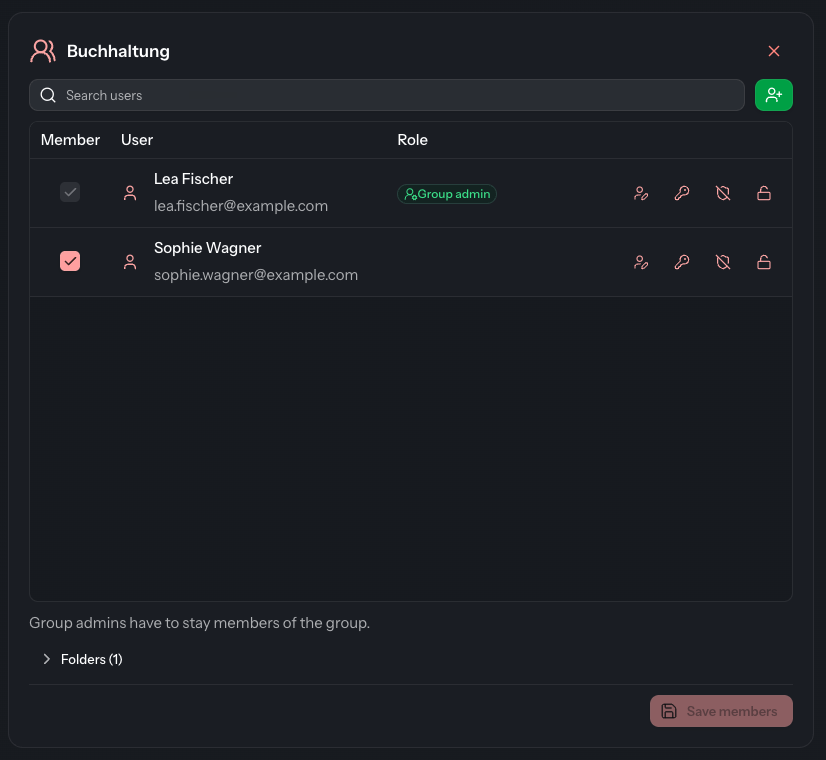
- In the Member column, select the checkbox to add the person. Clear it to remove them.
- Click Save members.
The change only takes effect when you save. The DocSecBox confirms it with “Members saved.” As long as nothing has changed, Save members stays greyed out.
If you switch to another group or page with unsaved changes, the DocSecBox asks first (Unsaved changes). Discard and switch discards the changes, Cancel stays with the group.
Who is in the list
The list shows not only the members but everyone you can add. The members are at the top. For each person you see the name and e-mail address in the User column.
- As a group admin you only see the people from your own groups. If your administrator has allowed See all users, you see everyone.
- Group admins do not see deactivated accounts. Their membership is kept all the same. Administrators see them with the note Deactivated.
Appointing a group admin
Administrators only
Only an administrator appoints group admins. The Role column for this only appears if Enable group admins is switched on under Settings › Application › Roles.
- Add the person as a member.
- In the Role column, click Member . The entry changes to Group admin.
- Click Save members.
Clicking Group admin again takes the role away. If you remove a group admin from the group, they lose the role as well. Administrators cannot be group admins. If an administrator is a member, their row shows only a dash under Role.
As a group admin you see in the Role column who administers the group (Group admin). You cannot change this, and you cannot remove group admins. Their checkbox is greyed out, and below the list it says “Group admins have to stay members of the group.”
Creating and editing users
- Use (Create user) to the right of Search users to create a new account. The open group is already selected.
- Use (Edit user) at the end of a row to change an existing account.
The dialog for this is described under Create user and Edit user. As a group admin you only see the two buttons if your administrator allows it.
Resetting an account
As a group admin you find up to three more buttons at the end of a row, depending on what your administrator allows:
| Button | Effect |
|---|---|
| Reset password | The person receives an e-mail with which they set a new password. |
| Reset 2FA | Two-step authentication is removed and has to be set up again. |
| Reset login attempts | An account locked after too many failed attempts can sign in again. |
Each of these actions asks first. On smartphones and tablets the buttons also carry a short label (Password, 2FA, Unlock).
As a group admin you only see the buttons at the end of a row for people who are already a saved member of one of your groups. Administrators reset accounts under Settings › Overview › Users.