Search
The search finds a file or folder without your knowing where it is. The DocSecBox searches all the folders you may see, not just the open one.
Searching for a file or folder
- Click the Search... field at the top of the filter bar.
- Enter a search term, for example "Rechnung".
- The list shows the hits while you are still typing.
- Click a hit to see its details in the detail panel.
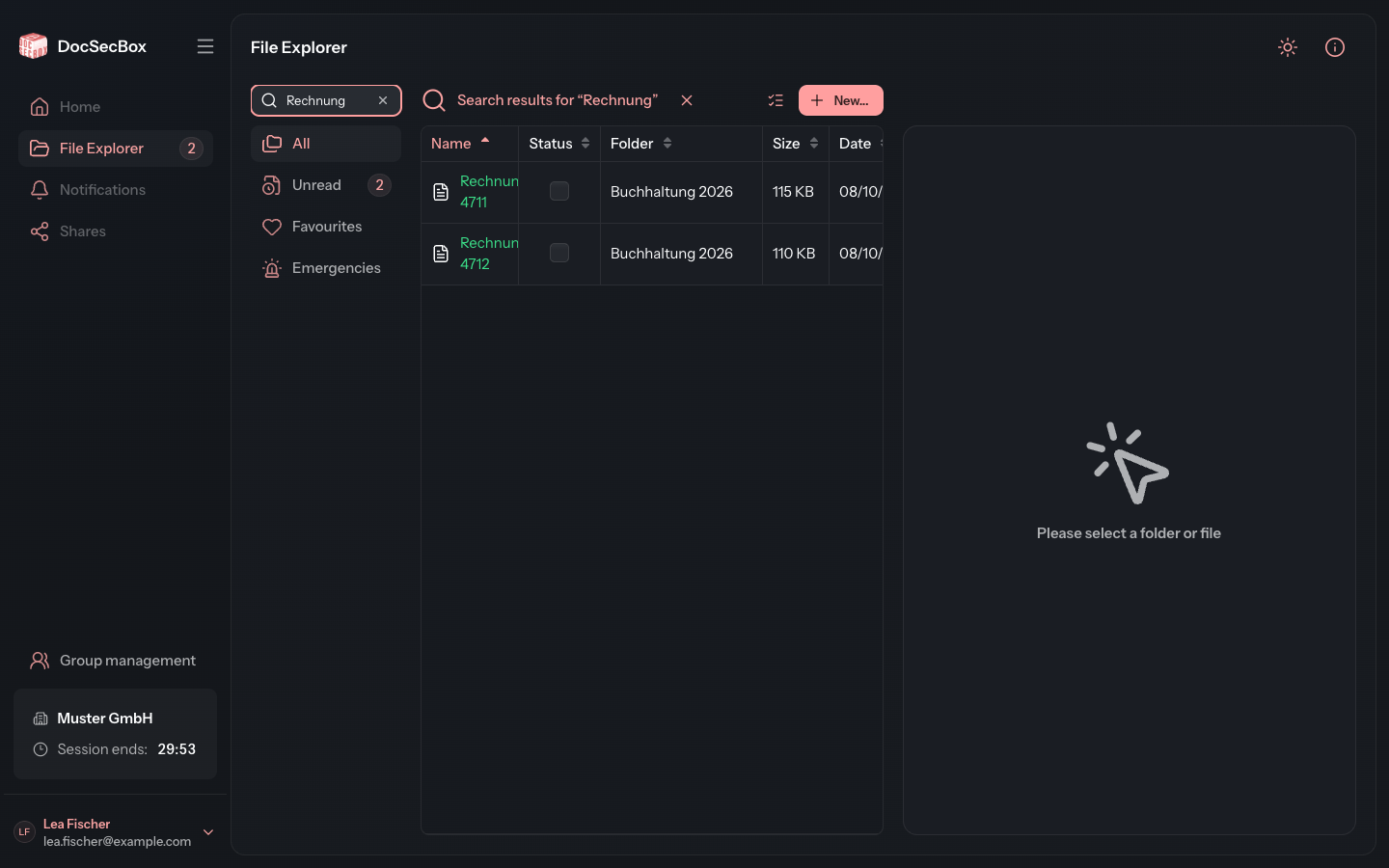
The search finds:
- folders whose name contains the term,
- files whose title, identifier or status contains the term.
If the search finds nothing, the list reads No matches for the search.
The list of hits
Instead of the path bar, the line above the list shows what you are searching for, for example Search results for “Rechnung”. The Folder column shows which folder a file is in.
Clicking the folder name opens that folder. The file you found stays selected, so you see it in its surroundings straight away. To do this, the view switches to the All filter.
If a filter such as Unread is selected, it still applies while you search. You then only see hits that are also unread.
Ending a search
Click the cross Clear search next to Search results for …. Or delete the term in the search field. The list then shows the folder you were in before again.