Account
The profile holds everything that concerns only your own account. The Account area shows your personal details. This is also where you choose the language of the DocSecBox, store your mobile number and download your privacy report.
Open the Profile
- Click your name at the bottom of the navigation bar.
- Choose Profile from the menu.
The profile opens in the Account area. On the left you switch to Appearance, Security and Permissions.
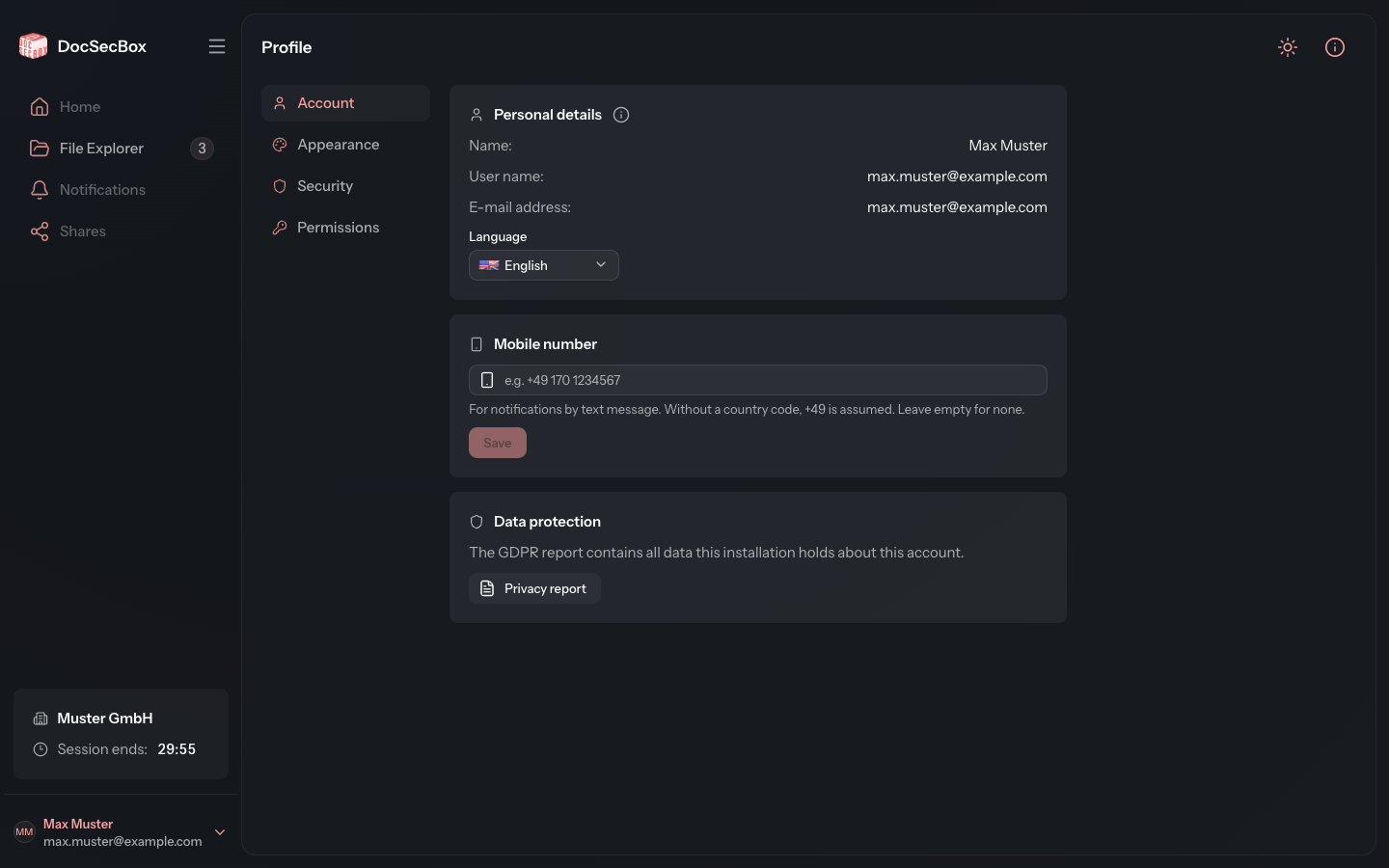
Personal Details
The Personal details card shows Name, User name and E-mail address. You cannot change these yourself. Your administrator does that, which the icon next to the heading also points out.
Change the Language
Choose the language you want in the Language field. The DocSecBox switches at once, there is nothing to save.
Store Your Mobile Number
The DocSecBox sends a text message to this number when an emergency alarm is raised in an emergency folder.
- Enter your number in the Mobile number card, for example
0170 1234567or+49 170 1234567. - Click Save.
Without a country code, the DocSecBox assumes +49 (Germany). The number is always stored in the same
notation, for example +491701234567, and the field shows it that way afterwards.
Only mobile numbers are accepted. For a landline number or an incomplete number, “Please enter a valid mobile number.” appears and Save stays greyed out.
If you do not want any text messages, clear the field and click Save.
Good to Know
- Text messages only arrive if your administrator has set up text messaging (Settings › Application › SMS).
- If you leave the profile with an unsaved number, the DocSecBox asks first. Choose Stay on this page or Discard and leave.
- The Data protection card offers the privacy report with all data stored about your account.