Notification
A notification lets you point others to a file by e-mail. The e-mail contains a link to the file. You decide whether all users with access to the file receive it, or only some of them.
Notify permission required
You only see the Notification tab if you have the Notify permission in the file's folder (see Members).
Send a notification
- Select the file in the list and open the Notification tab on the right.
- Under New notification, choose the recipients:
- Notify all users sends the e-mail to everyone in the Recipients list. This is the default.
- Custom selection: in the Recipients list, select the checkboxes of the people you want. The Search for name or mail... field helps you find them faster.
- Click Send notification.
The message “Notification sent!” confirms the sending. The selection is then cleared, so that nobody is notified twice by mistake.
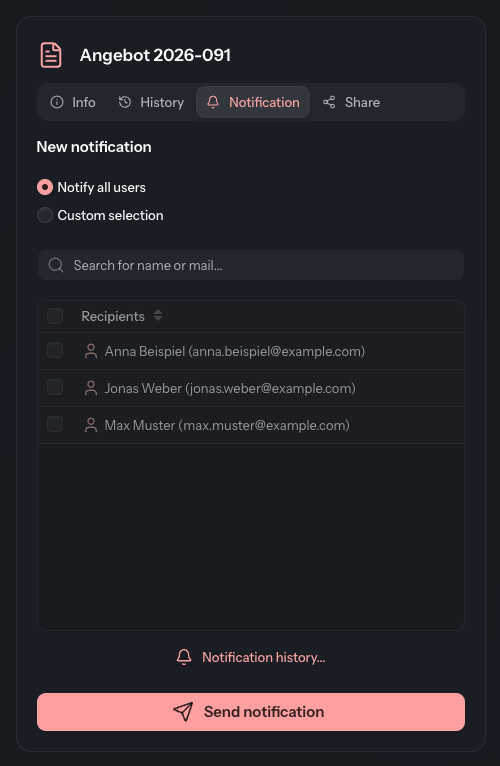
The Recipients list contains all users who can see the file.
If the file or its folder is not active at the moment, Send notification is greyed out. The reason appears above it: “The file is not active at the moment. A notification would point to a link the recipients cannot open.”
See who has already been notified
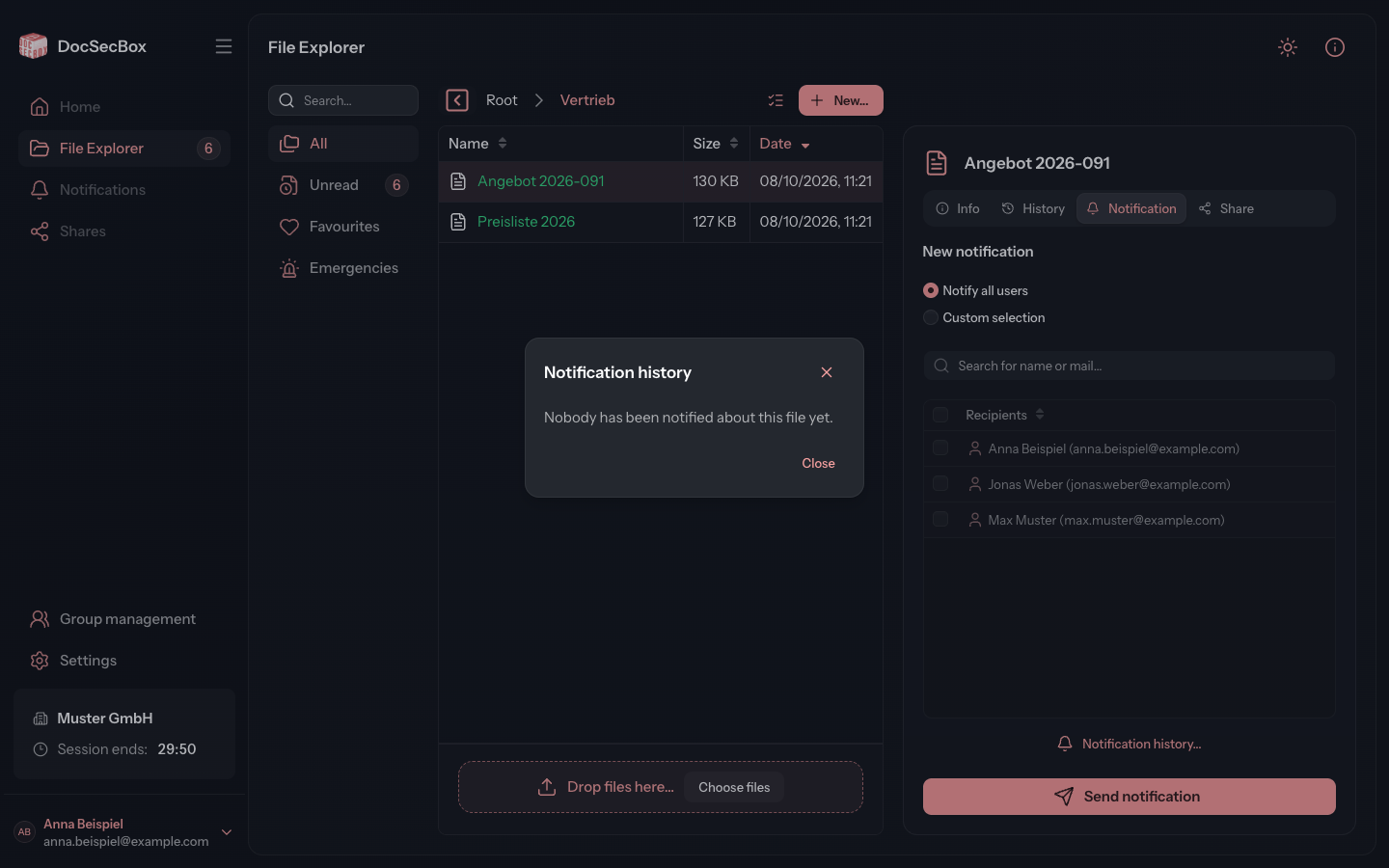
On the tab, click Notification history.... The Notification history dialog shows one card for each sending about this file, newest first. This includes notifications sent by hand, the automatic ones on upload, and emergency alerts.
Each card shows:
| Item | Meaning |
|---|---|
| Type and time | Notification or Emergency alert. Very old entries appear as Unknown. |
| Status | Sent, Partially failed or Failed |
| Triggered by | Who triggered the sending |
| E-mail / SMS | How many recipients were reached this way. Only an emergency alert has an SMS line. If nobody there had a mobile number, it reads No mobile number on file. |
| Show recipients | Expands the individual addresses |
If nobody has been notified yet, the dialog reads “Nobody has been notified about this file yet.”
Good to know
- A folder's automatic notification sends an e-mail by itself on every matching upload (see Notify). The Notification tab, by contrast, is a manual sending, for this file only and repeatable as often as needed.
- The wording of the e-mail comes from the folder's texts or, if the folder has none of its own, from the main templates (see Notify).