Permissions
The Permissions area shows what you may do in the DocSecBox and through which groups you see folders. This helps when a folder is missing or a button is greyed out. Nothing can be changed here. If you are missing a permission, contact your administrator.
To open the area, click your name at the bottom of the navigation bar, choose Profile and then Permissions on the left.
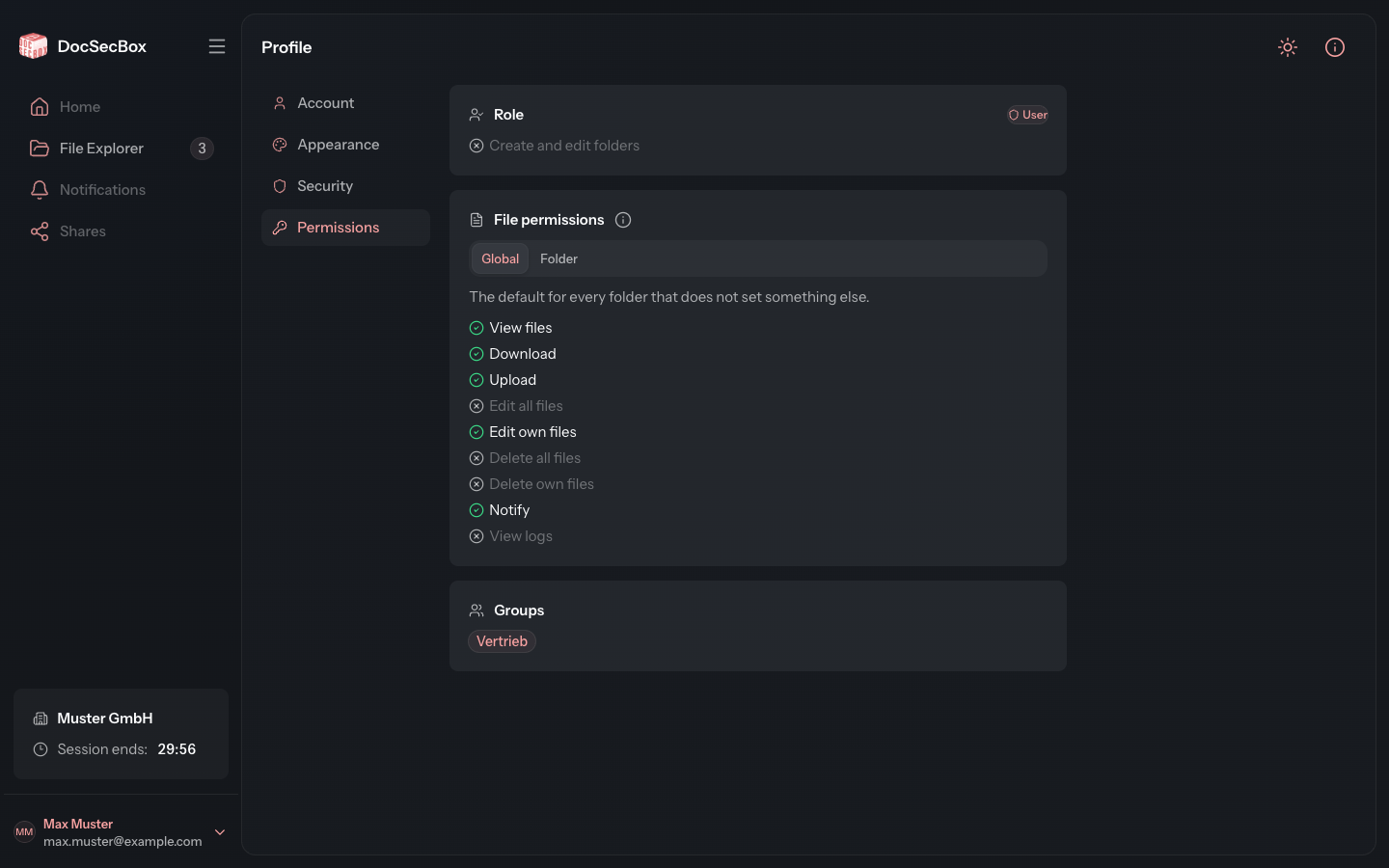
Role
The Role card shows your role at the top right: User, Administrator or Super administrator. Below it you see whether you may create folders (Create and edit folders). A tick means yes, a cross means no. The same applies to the permissions further down.
File Permissions
The File permissions card lists nine permissions. They apply to the files in the folders you can see:
| Permission | Meaning |
|---|---|
| View files | Open files and view their content |
| Download | Download files |
| Upload | Upload files into a folder |
| Edit all files | Edit any file in the folder |
| Edit own files | Edit only files you uploaded yourself |
| Delete all files | Delete any file in the folder |
| Delete own files | Delete only files you uploaded yourself |
| Notify | Notify others about a file |
| View logs | View the history of a file |
The Global tab shows your default. It applies in every folder that does not set something else. A folder can set individual permissions differently for you.
Whether a file appears in the list at all is not decided by this list but by your group. Without View files you therefore see a file in the list but cannot open it.
Check the Permissions in a Folder
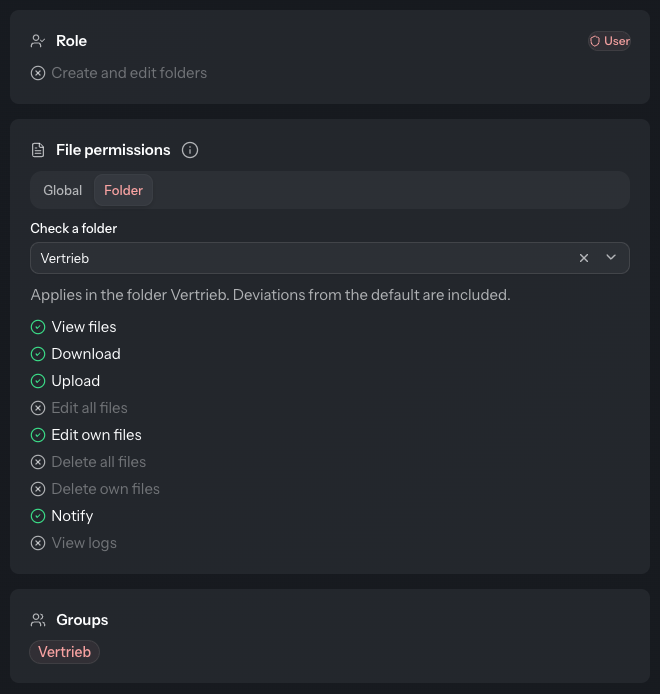
- In the File permissions card, choose the Folder tab.
- Pick the folder in the Check a folder field.
The list now shows the permissions that actually apply in this folder. Deviations from your default are already included.
Groups
The Groups card shows the groups through which you see folders. An entry such as Direct assignment · Sales means you are assigned to the Sales folder directly, not through a group.
If it reads “This account is not assigned to any group. Without an assignment no folder is visible.”, you do not see any folder yet. Your administrator first has to assign you to a group or a folder.