Forgot Password
If you have forgotten your password, request a link by email on the login page and use it to set a new one. You do not need your administrator for this.
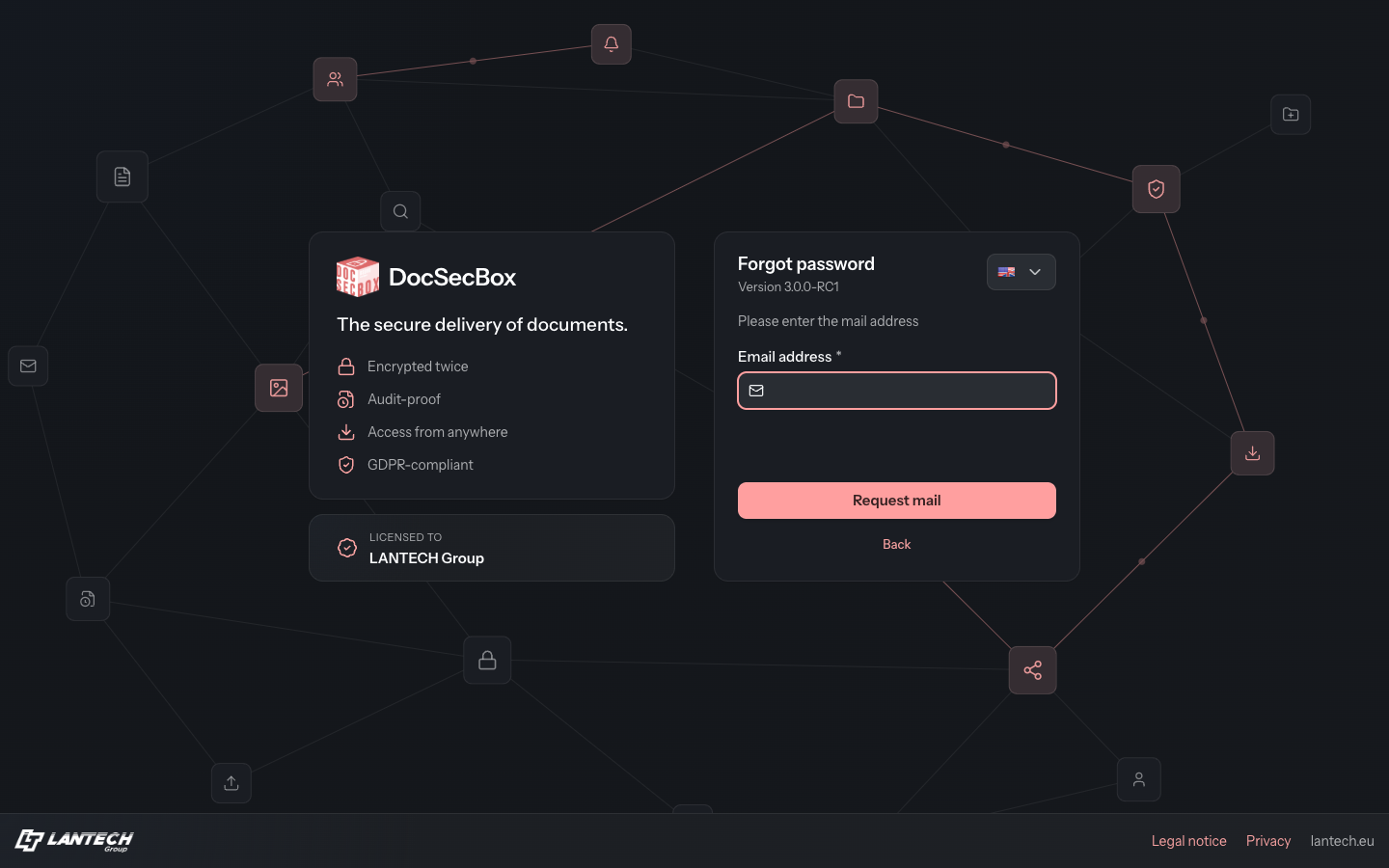
Request a new password
- On the login page, click Forgot password.
- Under Email address, enter the address that belongs to your account.
- Click Request mail.
The message “Password reset mail sent successfully!” appears, and the page returns to the login. The message always appears, even if the address is not known. That way nobody can try out which addresses have an account.
Back returns to the login without requesting an email.
Set a new password
- Click the link in the email. The login page opens with Set password.
- Enter a password under New password and repeat it under Repeat new password. A list shows which requirements the password already meets.
- Click Save password. The message “Password set successfully!” appears.
- Sign in with the new password.
Until you set a new password, your previous one remains valid.
Good to know
- The link is only valid for a limited time; the email says for how many hours. If it has expired or has already been used, request a new one.
- If no email arrives, look in your spam folder and check the address. If that does not help, contact your administrator.
- If the entry is not a valid email address, the field reports “Please check the entered mail address!”