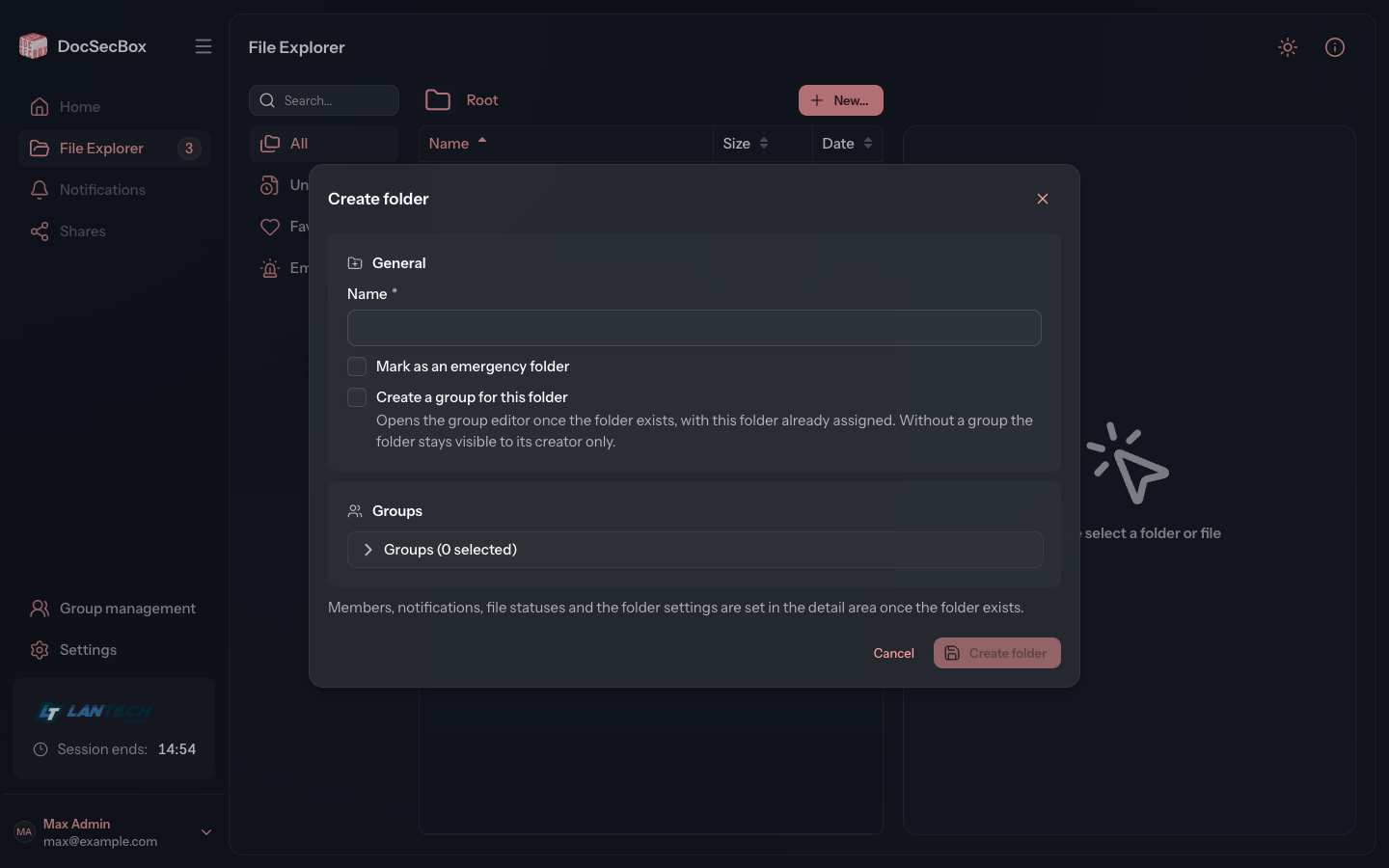
Create folder
Folders hold your files and decide who may see them. This is how you create a new folder or a subfolder.
Permission required
Administrators and users with the permission Create/edit folders for assigned groups can create folders. Without this permission, the two entries for creating folders are missing from the New… menu.
Creating a folder
- Open the File Explorer. For a subfolder, first open the folder it is to be created in.
- Click New… in the path bar.
- Choose Create folder for a top-level folder, or Create subfolder for a subfolder of the open folder.
- Enter a Name.
- If needed, use Groups to decide who should see the folder (see below).
- Click Create folder or Create subfolder.
The explorer opens the new folder straight on the Members tab, where you decide who else may see it. Users who are not administrators land on the Info tab instead.
The New… menu
In the root directory (Root), New… offers Create folder and Upload files. Inside a folder, Create subfolder is added as the first entry.
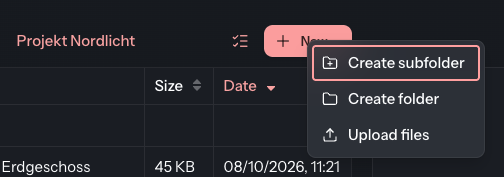
| Entry | Effect |
|---|---|
| Create subfolder | Creates a subfolder of the open folder. The dialog names the parent folder at the top (“As subfolder of …”). |
| Create folder | Creates a top-level folder, even while you are inside a folder. |
| Upload files | Opens the upload dialog. |
Assigning groups
Who may see a folder follows from the groups it is assigned to. In the Groups card you can choose these groups while creating the folder. The field Search for group... filters the list, and the heading Groups (… selected) counts your selection.
What you need to do here depends on your role:
- As an administrator, the card is collapsed and the selection is optional. You always see the new folder yourself. You grant further access on the Members tab once the folder exists.
- Without the administrator role, the card is expanded and the selection is required. Choose at least one of your own groups, otherwise nobody can see the folder. Until then, Create folder stays greyed out.
For a subfolder, the button Take over from parent folder takes over the groups of the parent folder and ticks them in the list. It is greyed out if the parent folder has no group that you may assign here.
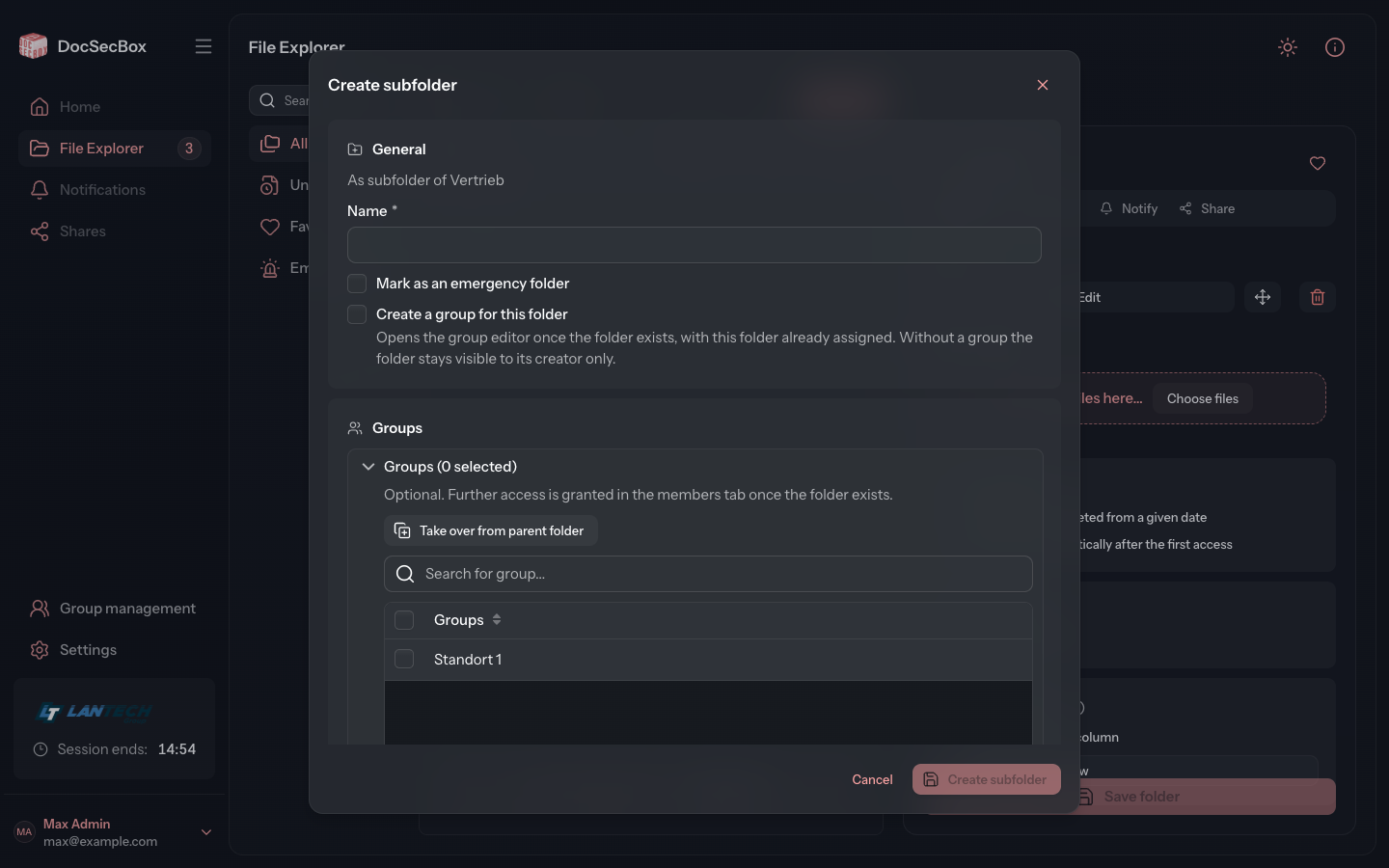
Fields at a glance
| Field | Meaning |
|---|---|
| Name | Mandatory. While it is empty, the create button stays greyed out. |
| Mark as an emergency folder | Administrators only. What an emergency folder is, see Emergency folder. |
| Create a group for this folder | Administrators only. Once the folder exists, opens the Create group dialog with the new folder already assigned. |
| Groups | The groups that are to reach the folder. See Assigning groups. |
Good to know
- You set members, notifications, statuses and the remaining settings in the detail panel after creating the folder: Folder details, Members, Notify and Status templates.
- Your administrator can store defaults for new folders under Settings › Application › Objects, such as groups, retention periods, status templates or subfolders that are created automatically along with the folder. These defaults apply without any action on your part. See Objects.
- The same page decides whether Create a group for this folder is already ticked.