Members
On the Members tab you decide who may see a folder. You also see what each person may do in this folder.
Administrators only
Only administrators (permission Management) see the Members tab. Users who create a folder without this permission grant access through the groups while creating it.
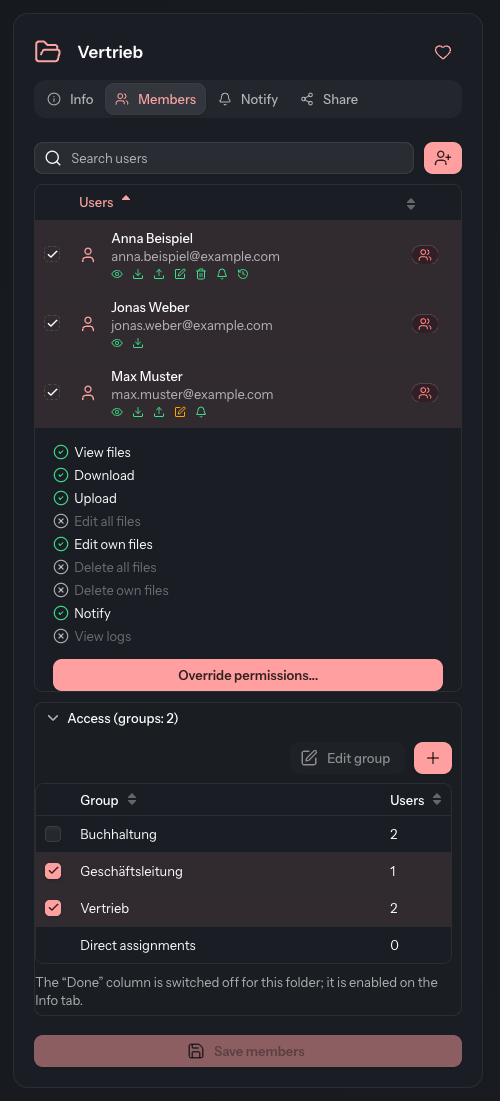
Two ways into a folder
A person reaches a folder in one of two ways:
- through a group that contains both the person and the folder, or
- through a direct assignment, which applies to this person and this folder only.
The list shows all users of your tenant. A tick in front of a name means: this person reaches the folder. The icon on the right of the row names the way: Group, Direct, Group + direct or Not assigned. Hover over it to see the label.
Assigning people directly
- Open the Members tab.
- Find the person by name or email address in the field Search users.
- Select the checkbox in front of the name. To remove the person, clear it again.
- Click Save members.
Changes only take effect once you save.
If a person already reaches the folder through a group, their tick is set and greyed out. You do not take this access back here but in the group itself (see Groups). You can still add or remove a direct assignment for such a person: click the icon on the right of the row and choose Assign directly or Remove direct assignment. A direct assignment remains in place even if the group later loses the folder.
If an account is missing altogether, create it with (Create user) next to the search field. It then appears in the list and you can assign it.
Assigning groups
- Below the list, expand the section Access (groups: …).
- Select the groups that are to reach the folder.
- Click Save members.
The list in the Access section shows all groups with their number of Users. The last row, Direct assignments, stands for the people assigned directly to this folder. The number in the heading states how many groups are assigned to the folder.
| Button | Effect |
|---|---|
| Edit group | Opens the group you clicked last for editing, for example to add members. |
| Create group | Creates a new group that is already assigned to this folder. |
What a person may do in the folder
Below the name of each person who reaches the folder there is a row of icons: the rights that apply in this folder. Green stands for the full right, orange for a right that only covers the person's own files. If there is no right at all, the row reads No rights in this folder.
| Right | What it allows |
|---|---|
| View files | Open the folder's files and look at them in the preview |
| Download | Download files, provided the file allows it |
| Upload | Upload files into the folder |
| Edit own files | Edit files the person uploaded |
| Edit all files | Edit every file in the folder |
| Delete own files | Delete files the person uploaded |
| Delete all files | Delete every file in the folder |
| View logs | Open the history of a file |
| Notify | Notify others about a file |
The rights belong to the account and apply to all folders. For a single folder you can deviate from them:
- Click the person's name or icons (Show permissions). The row expands and shows all nine rights.
- Click Override permissions....
- In the Folder exception dialog, set each right to Inherited, Allowed or Withheld. The Account right column shows what the account may do elsewhere, for comparison.
- Click Save.
Remove in the Remove folder exception card restores the account's normal rights. If Override permissions... is greyed out, only a super admin may change folder exceptions in your tenant. How account and folder work together is described under permission system.
Granting the “Done” column
In the “Done” column, members tick files off as done (see Status of a file). The column only appears when two things are true:
- On the Info tab, Enable the “Done” column is switched on and saved.
- Here, in the Access section, the person's way in is selected in the “Done” column column, that is their group or the Direct assignments row. Save with Save members.
If the switch on the Info tab is off, the column is missing here. A hint below the list then tells you where to switch it on. For the Direct assignments row, the column can only be set once the folder has at least one direct assignment.
Good to know
- An administrator who creates a folder is assigned to it directly and automatically.
- A group's “Done” column setting belongs to the group, so it applies in every folder the group reaches.
- You maintain group memberships under Groups or, as a group administrator, under Group management.