Two-Step Authentication
Two-step authentication protects your account in addition to your password. Every time you sign in, the DocSecBox asks for a six-digit code that an authenticator app on your smartphone displays. Someone who only knows your password cannot get into your account.
What You Need
A smartphone with an authenticator app, for example Microsoft Authenticator:
Other authenticator apps work just as well.
Set It Up
Have your smartphone ready.
- Click your name at the bottom of the navigation bar and choose Profile.
- Choose Security on the left. The 2-Factor-Authentication card shows Not active.
- Click Set up. The Set up two-step authentication dialog opens and shows a QR code.
- Open the authenticator app on your smartphone and add a new account. In Microsoft Authenticator you do this with the plus sign at the top right.
- Scan the QR code with the app. The app then shows a new entry with the name of the DocSecBox and of your company.
- Read the six-digit code in the app and enter it in the dialog under Current code.
- Click Activate.
The message “2-factor-authentication activated!” confirms the setup. The card now shows Active.
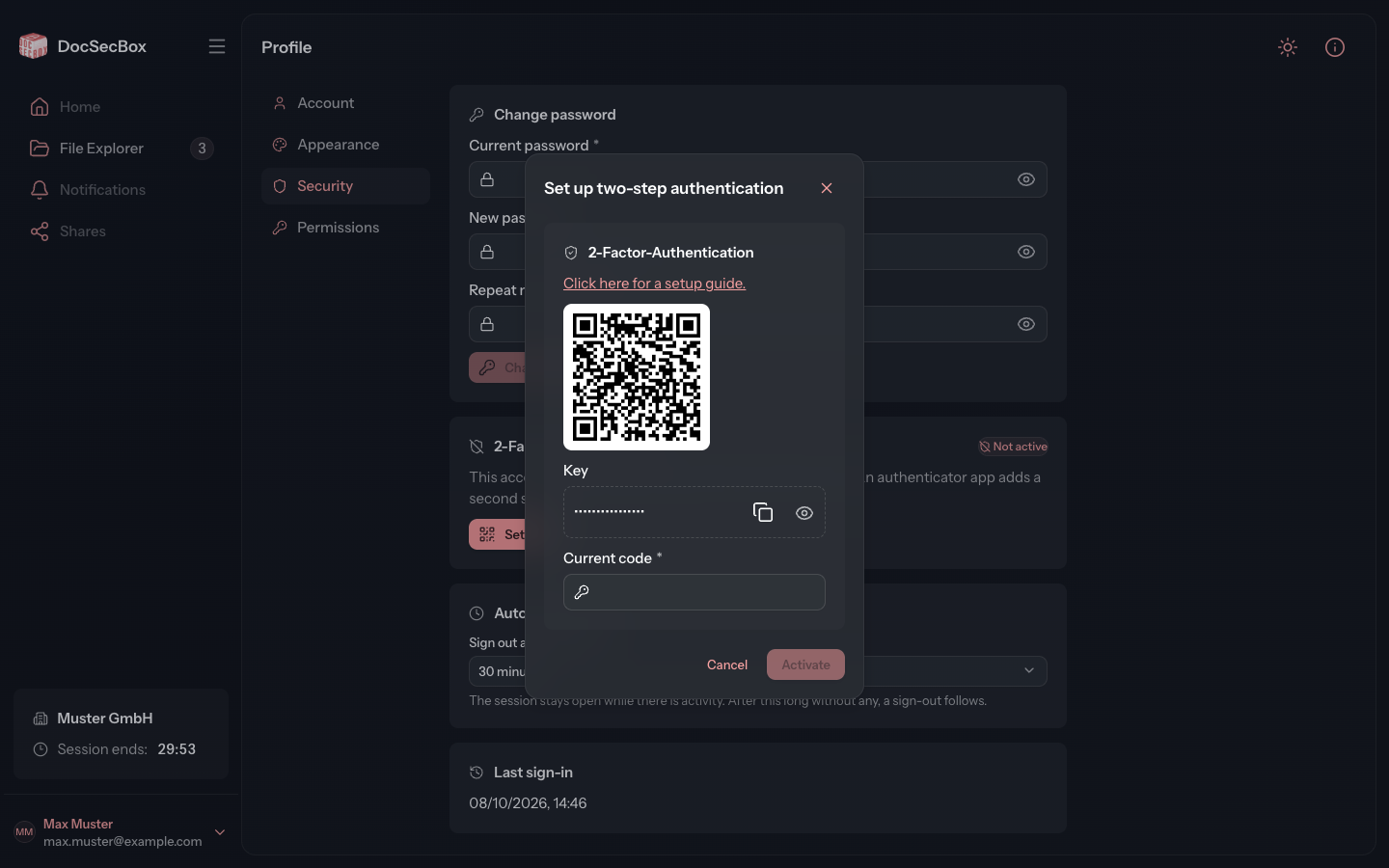
If the QR code cannot be scanned, enter the Key in the app instead. The eye icon in the field reveals it, the icon next to it copies it. The link Click here for a setup guide. also opens a guide as a PDF.
If “Please check the authentication code!” appears, the code was wrong or had already expired. The dialog stays open. Enter the code the app is showing right now.
Sign In with the Code
- Sign in as usual with your user name and password. If you work in several tenants, choose the tenant next.
- The DocSecBox asks for the current code from the authenticator app. Open the app and enter the code it is showing.
- After the sixth digit, sign-in continues by itself. Alternatively, click Confirm.
If you see “That code is not correct or has expired.”, wait for the next code and enter it.
Turn It Off
- In your Profile, open the Security area. The 2-Factor-Authentication card shows Active.
- Click Deactivate.
- In the dialog, enter the code from the app under Current code.
- Click Deactivate.
From then on your account is protected by the password alone.
New or Lost Smartphone
New smartphone: Turn two-step authentication off while you still have the old smartphone. Then set it up again with the new one.
Old smartphone gone or app deleted: Without a code you cannot sign in. Ask your administrator to reset two-step authentication for your account. Then set it up again. If the smartphone was stolen, also change your password.
Good to Know
- The time on the smartphone must be correct, otherwise the codes do not match. It is best to set the time to automatic.
- Two-step authentication applies to the tenant in which you set it up. If you work in several tenants, set it up in each one. The app then shows a separate entry for each.
- If your administrator has made two-step authentication mandatory for your account, the DocSecBox asks you to set it up when you sign in. The steps are the same: scan the QR code, enter the code.