Interface
Here you set two things for your tenant, that is, your company's area in the DocSecBox: which language the automatic texts appear in first, and which logo the DocSecBox shows.
Administrators only
Only administrators see the pages under Settings › Application. If Only super administrators are allowed to adjust program settings is switched on under Roles, only super administrators see them.
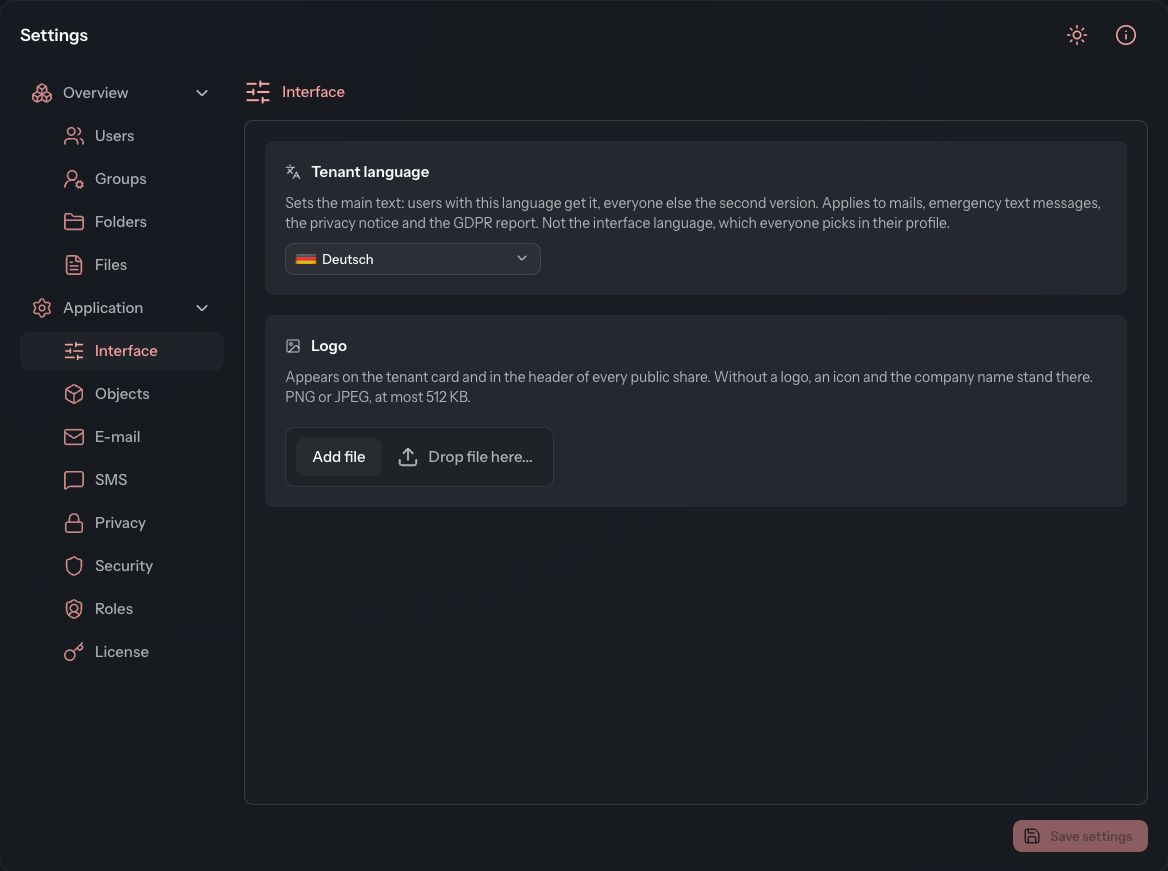
Set the tenant language
The DocSecBox stores many texts in two versions, a primary language and a foreign language. The Tenant language decides who receives which version. Users whose language matches it receive the main text. Everyone else receives the second version.
- Open Settings › Application › Interface.
- Under Tenant language, select the language.
- Click Save settings.
As soon as you choose a different language, the page shows a note before you save. It reminds you that afterwards every user with a different language receives the second version of the texts.
The setting applies to:
- the notification and welcome mails (see E-mail),
- the emergency text message (see SMS),
- the privacy notice and the GDPR report (see Privacy).
The language the DocSecBox itself is displayed in is independent of this. Each user picks it for themselves in the profile under Account.
Upload a logo
The logo appears on the tenant card at the bottom of the navigation bar and in the header of every public share. Without a logo, an icon and the company name stand there.
- In the Logo card, click Add file or drag the image file onto the Drop file here... field.
- Click Save settings.
PNG and JPEG files of at most 512 KB are allowed. To remove the logo again, click Remove logo and then Save settings.
Good to know
- Save settings is greyed out as long as you have not changed anything. This applies to every page under Application.
- The browser tab icon and the accent colour do not belong to the tenant. They apply to the whole installation and are set by the operator of your DocSecBox.